AI Assistant: chat with your portfolio, draft with approval
The AI Assistant is a chat that knows your CRM. It answers questions from your live data, reads your files, drafts memos, and makes edits to deals, borrowers, and lenders — but never writes anything without your approval. Every change it wants to make arrives as a proposal card you apply or discard.
Find it under Chats at the bottom of the sidebar: “New chat” starts a conversation, your recent chats are listed below it, and “More” opens a searchable history (“Search conversations”). Conversations are saved with stable URLs, so you can share one with a teammate or pick it up tomorrow; landing on /assistant auto-opens your most recent one. Requires the crm_assistant feature.
Starting a chat
Section titled “Starting a chat”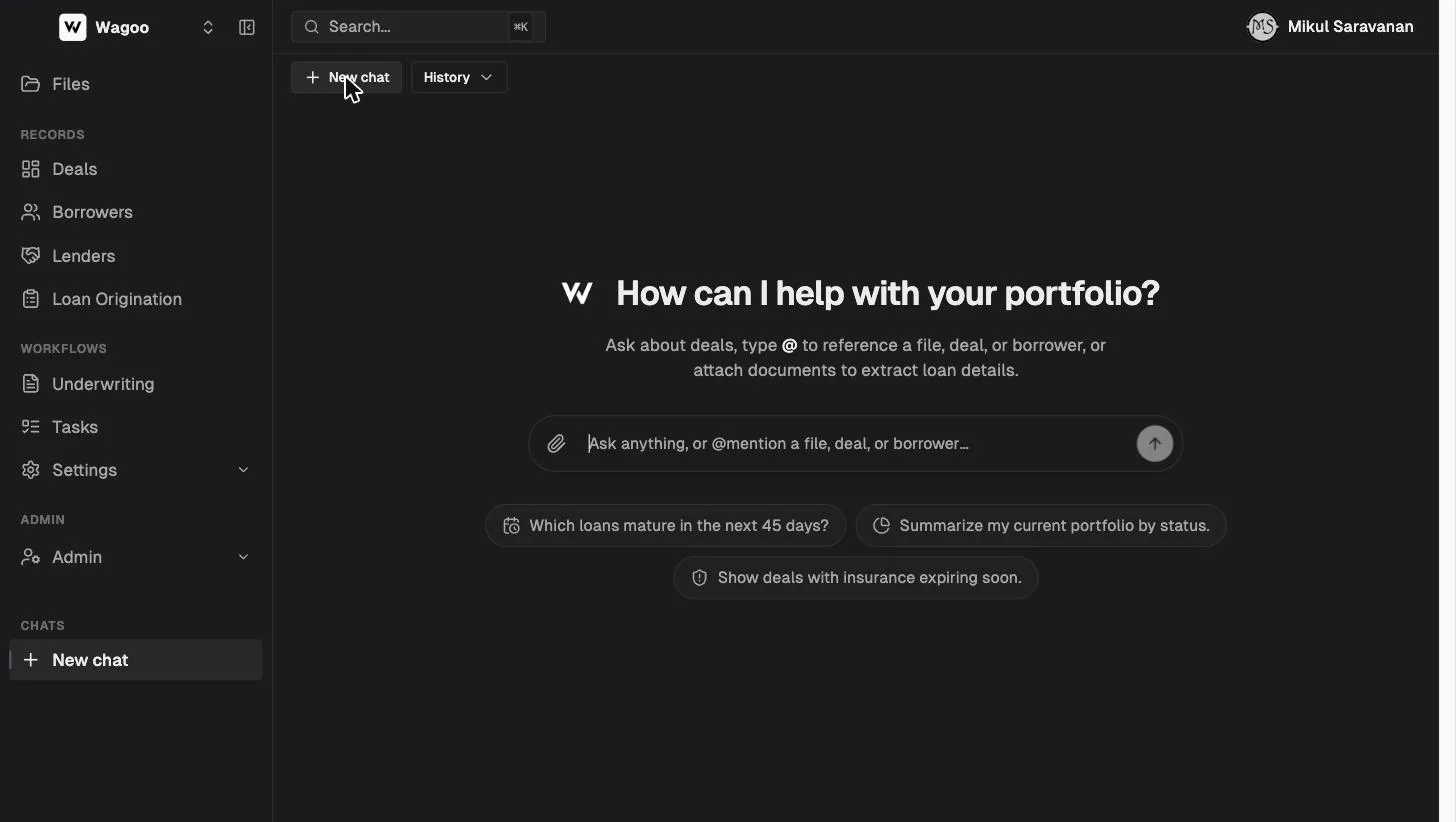
A new chat opens on “How can I help with your portfolio?” with three starter chips — Which loans mature in the next 45 days? · Summarize my current portfolio by status. · Show deals with insurance expiring soon. — and a composer (placeholder “Ask anything, or @mention a file, deal, or borrower…”) where you can:
- Type a question or instruction in plain English.
- Type
@to reference a specific file, deal, or borrower — see @-mentions. - Attach documents with the paperclip.
While it works you’ll see small status lines (“Looked up deals”, “Read document”, “Summarized portfolio”), and a Stop button (square) cancels a streaming reply. Answers can include in-app links straight to a deal or borrower.
What the assistant can do
Section titled “What the assistant can do”| Capability | Examples |
|---|---|
| Answer from live data | Portfolio summaries, maturities, overdue interest, insurance expirations, payment history, borrower track records, lender allocations, deal parties — plus your underwriting deals (read-only) |
| Read documents | Files in your Files library, documents attached to deals, and anything you attach to the chat |
| Draft memos | Draft a pre-screen or credit-committee memo from a deal’s live data, then propose filing it on the deal as a document |
| Draft changes for approval | Update or create deals, create or update borrowers, create or update lenders and other records, set custom fields, attach documents — all via proposal cards |
Everything is scoped to your workspace via row-level security, and the assistant sees the same records your login does. Underwriting data is read-only — the assistant can read your underwriting deals but never change them.
What it can read
Section titled “What it can read”Under the hood the assistant has read access to: your deals and a single deal’s detail; borrowers; a deal’s parties (borrowing entity, co-borrowers, guarantors); the accounts directory (lenders, title companies, brokers, sponsors, borrowing entities); a portfolio summary (status counts, active-loan total, insurance expiring in 30 days, loans maturing in 45 days, overdue insurance payments); the payment ledger; your Files library (browse folders, search, then read a file); deal documents; and your underwriting deals. Custom fields your firm defined are readable too.
Asking about your portfolio
Section titled “Asking about your portfolio”Ask a question and the assistant queries your actual records, then answers with a table and the follow-ups that matter:
The finished answer, in full:
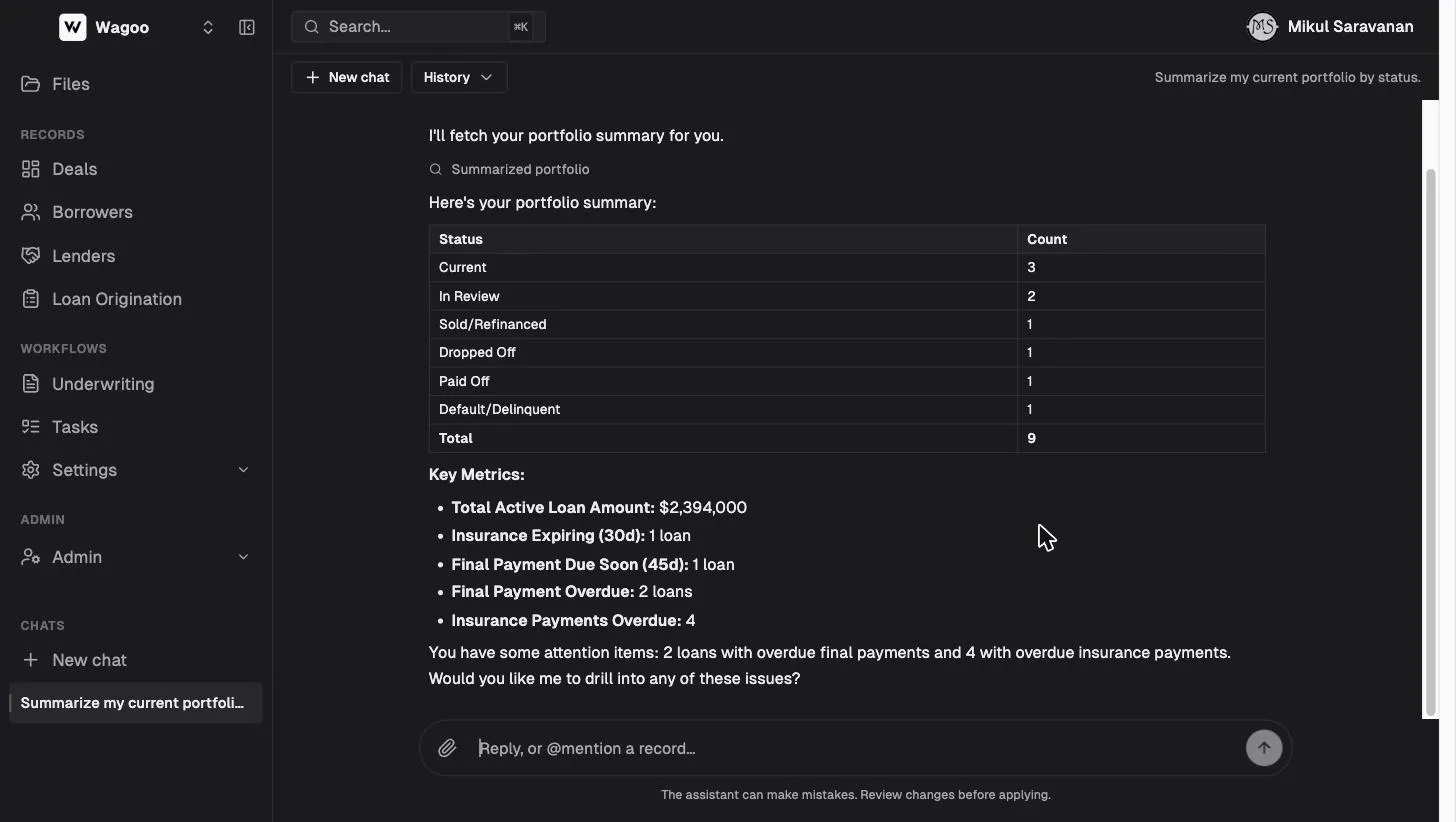
Because it’s reading live data, follow-ups drill in naturally: “which two loans have overdue final payments?” → “show me the payment history on the Sycamore Rd deal.”
Referencing records with @-mentions
Section titled “Referencing records with @-mentions”Typing @ opens a picker (header “Reference a file, deal, or borrower”) over your files, deals, and borrowers. Selecting one pins the exact record into your message — no ambiguity about which “Magnolia St” you mean. (Library images can be attached to a message but aren’t selectable via @.) Mentions are verified server-side and silently dropped if they no longer resolve.
Use mentions whenever a request targets something specific:
- “Summarize the terms on @730 Magnolia St.”
- “What does @Insurance_Policy.pdf say the coverage amount is?”
- “Update @Raymond Voss’s rating to high risk and note the missed payments.”
Reading and extracting from documents
Section titled “Reading and extracting from documents”Attach a document (paperclip) and the assistant reads it. Accepted types: PDF, Word (.docx), Excel (.xlsx / .xlsm / .xls), and images (.png, .jpg, .jpeg, .gif, .webp). Images are sent to the model as vision input and show as thumbnails; the other types are text-extracted. (Very large or heavily scanned files may not be fully readable.)
The high-leverage move: attach a loan document and ask it to extract the terms. Attach a signed term sheet and say “create a deal from this” — the assistant pulls the borrower, property, amount, rate, points, and dates, then proposes the new deal for your approval. The same works for updating a deal from a payoff statement, insurance binder, or amendment.
Drafting memos
Section titled “Drafting memos”The assistant can write deal documents. Ask for a memo on a deal and it drafts the full memo in the chat from the deal’s live data, then offers to file it:
- “Draft a pre-screen memo for @730 Magnolia St.”
- “Generate a credit committee memo covering the borrower, property, loan terms, lender allocations, performance, and risk factors.”
A pre-screen memo comes back with sections like Executive Summary, Borrower & Sponsorship, Property & Collateral, Loan Request & Terms, Exit Strategy, Insurance & Title, Risks & Mitigants, and Recommendation — citing the deal’s real numbers, delivered as a downloadable .docx:
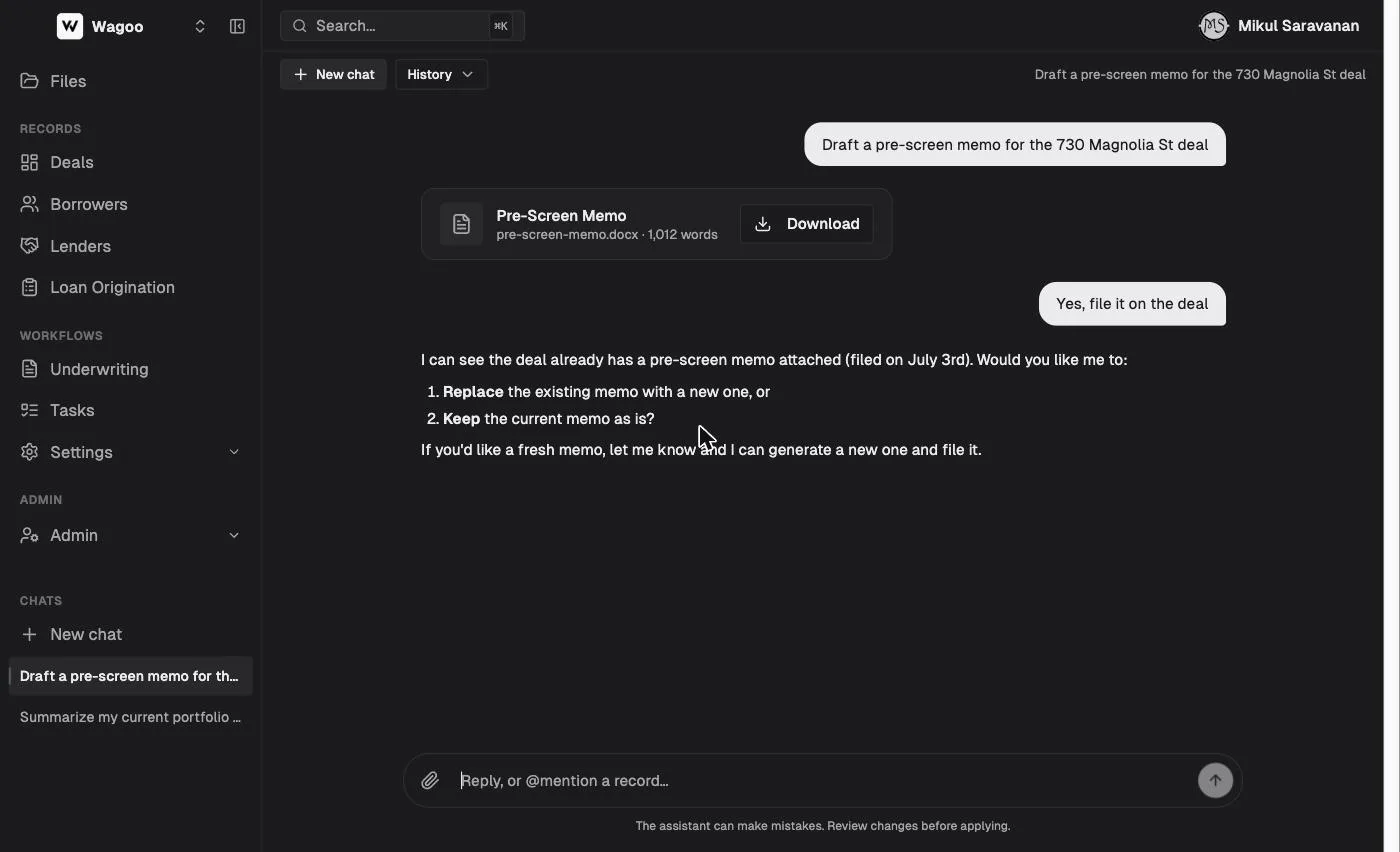
When you say to file it, the assistant proposes an Attach document change; the memo lands on the deal (Documents) only when you Apply. It’s smart about duplicates — if a memo is already on file, it asks whether to replace or keep the existing one.
Making changes: propose, review, apply
Section titled “Making changes: propose, review, apply”The assistant has no direct write access to your data. When you ask it to change something, it prepares a “Proposed changes” card describing exactly what it will do — and does nothing until you act.
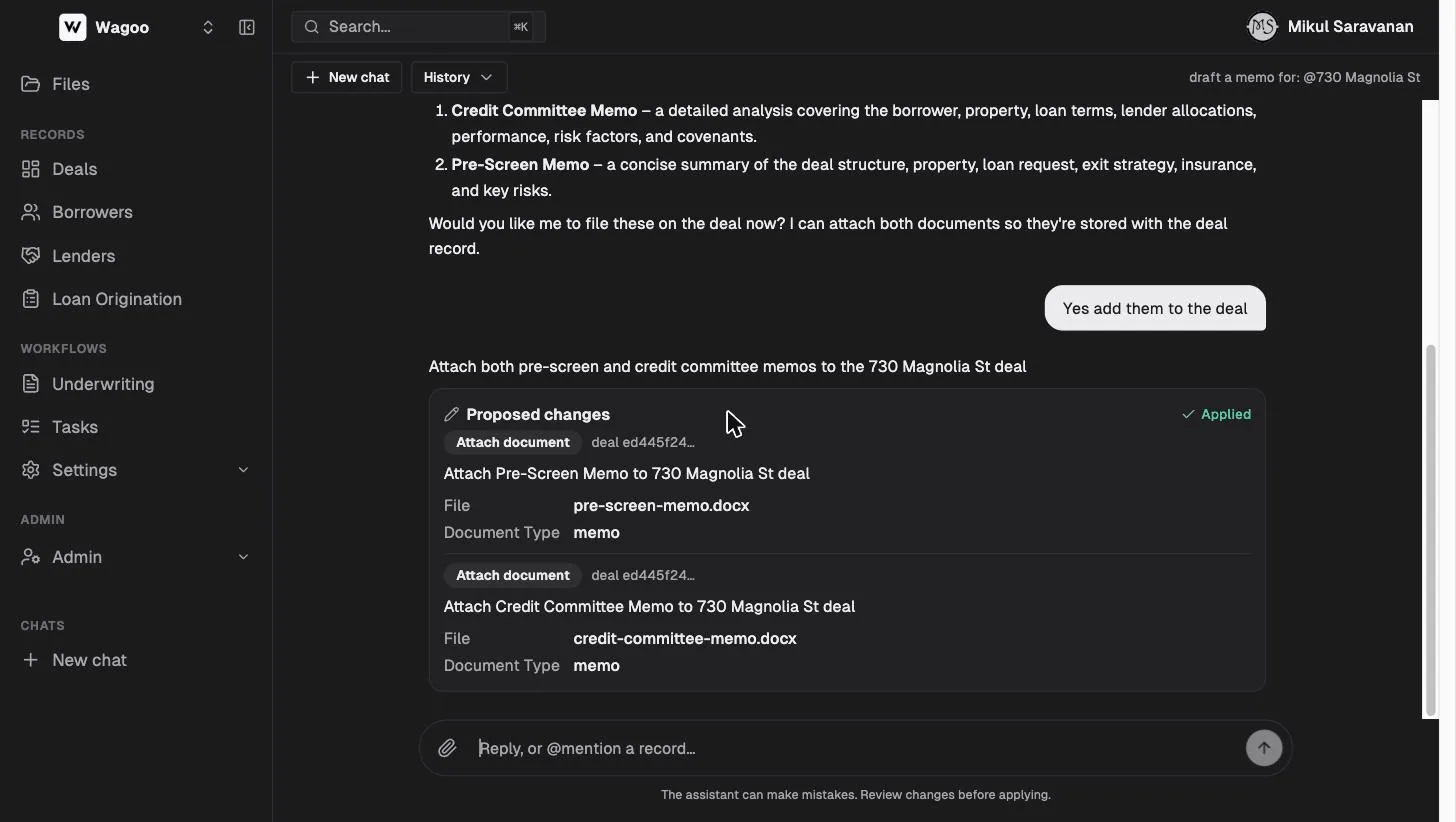
Changes it can propose include updating a deal, creating a deal, creating or updating a borrower, setting custom fields on a deal or borrower, creating or updating an account (a lender, title company, broker, sponsor, or borrowing entity), and attaching a document. Each proposed change shows a badge and a formatted diff of the fields; the badges for the most common ops read “Update deal”, “New deal”, “New borrower”, and “Attach document” (other operations show the operation name).
Then you:
- Apply — the change is written to your CRM (button shows “Applying…”); the card becomes Applied and a note is added to the chat. Success toasts “Changes applied”; if a multi-change proposal partially fails you’ll see “Some changes failed.”
- Discard — nothing is written.
Applying is safe to do twice (idempotent). A multi-change proposal is not all-or-nothing, so a partial failure can leave some changes applied — re-read the card if you see the partial-failure toast. Applied cards persist across reloads (so the chat records what you approved); a Discarded card is session-local and simply becomes actionable again if you reload.
The AI Summary on deal pages
Section titled “The AI Summary on deal pages”Deal records have an AI Summary section at the top (see Deals). Click “Generate” (then “Refresh”, with an “Updated {date}” stamp) for a written summary, risk flags, and suggested next steps, with an “AI-generated from this deal’s data — review before acting.” disclaimer. It’s powered separately from the chat and gated to crm_assistant workspaces.
Prompt cookbook
Section titled “Prompt cookbook”Servicing:
- “Which loans mature in the next 45 days, and which of those have insurance also expiring?”
- “List every deal with overdue interest, sorted by days overdue.”
- “What’s my total outstanding principal by lender?”
Records:
- “What’s @Marcus Reed’s track record with us?”
- “Compare the terms on @47 Beacon Hill Dr and @55 Harborview Ct.”
- “Which lenders in my list would fund a $450k single-family flip in Ohio?”
Documents & drafting:
- “Read @Draw_Schedule.xlsx and add the draws to @1842 Belmont Ave.” (arrives as a proposal)
- “Draft a pre-screen memo for @918 Sycamore Rd and file it.”
- “Extract the loan terms from this attachment and create the deal.”
Frequently asked questions
Section titled “Frequently asked questions”Can the assistant change my data without asking? No. Its only write path is the proposal card, and a proposal does nothing until you click Apply. Discarded proposals leave no trace in your records.
What data can it see? Deals, borrowers, deal parties, accounts (lenders, title companies, brokers, sponsors, entities), payments, custom fields, the Files library, deal documents, and — read-only — your underwriting deals. All within your workspace only.
Can it really write a memo? Yes — it drafts the memo in chat from the deal’s live data and proposes attaching it as a document. You review the draft (and can ask for revisions) before it’s filed on the deal.
Does it remember previous conversations? Each conversation keeps its own history and is saved under Chats. New chats start fresh — @-mention the records you care about to give a new chat context fast.
Is what it says always right? Its reads come from your live data, but it can misinterpret a question or a document — which is why writes require your approval. Review proposal cards before applying.
Related: Deals · Files & Tasks · Underwriting