AI Underwriting: automated, confidence-scored credit memos
Underwriting (sidebar → Workflows → Underwriting) turns a folder of deal documents into a structured credit memo in about a minute. Upload PDFs, spreadsheets, and decks; five AI agents extract the company profile, financials, collateral, and risk factors; and the result is a memo where every extracted field carries its own confidence score — exportable to DOCX and Excel (plus CRE decks).
The deals list
Section titled “The deals list”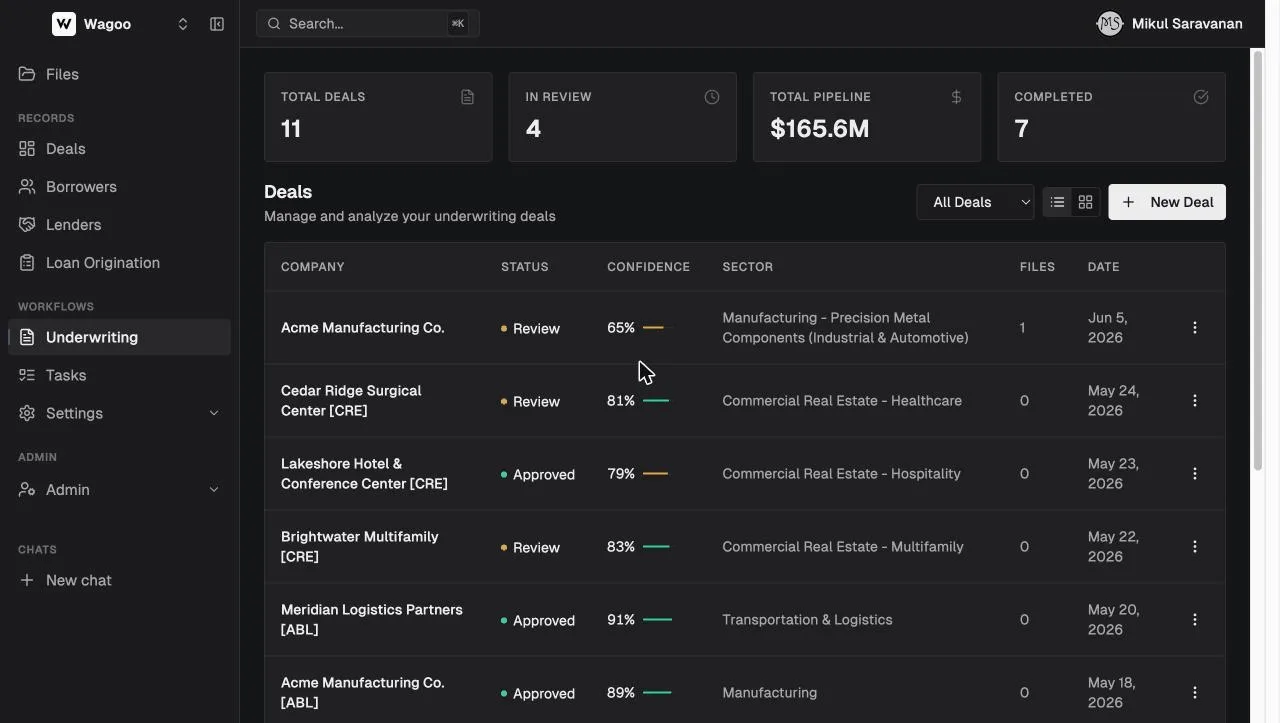
Four stat cards summarize the book: Total Deals, In Review, Total Pipeline (sum of facility amounts, excluding failed deals), and Completed.
The table below lists every underwriting deal with its Company, Status, Confidence (percent + mini bar, color-coded), Sector, Files, and Date. A row menu (⋮) offers View and Delete (confirm “Are you sure you want to delete this deal?”). Empty state: “No deals yet / Upload your first deal to get started.”
- Filter by status with the All Deals dropdown: Draft, Processing, Review, Approved, Rejected, Failed.
- Toggle between table and card grid with the view switcher (remembered; mobile forces the card grid).
- New Deal starts an upload.
Each deal carries a product-type badge on its detail header — Asset-Based Lending, CRE Bridge, Equipment Finance, or C&I Term Loan — which determines the memo sections. (A “Residential” type exists in the system but isn’t customer-facing yet.)
Uploading a deal
Section titled “Uploading a deal”Click “New Deal” to open the upload view.
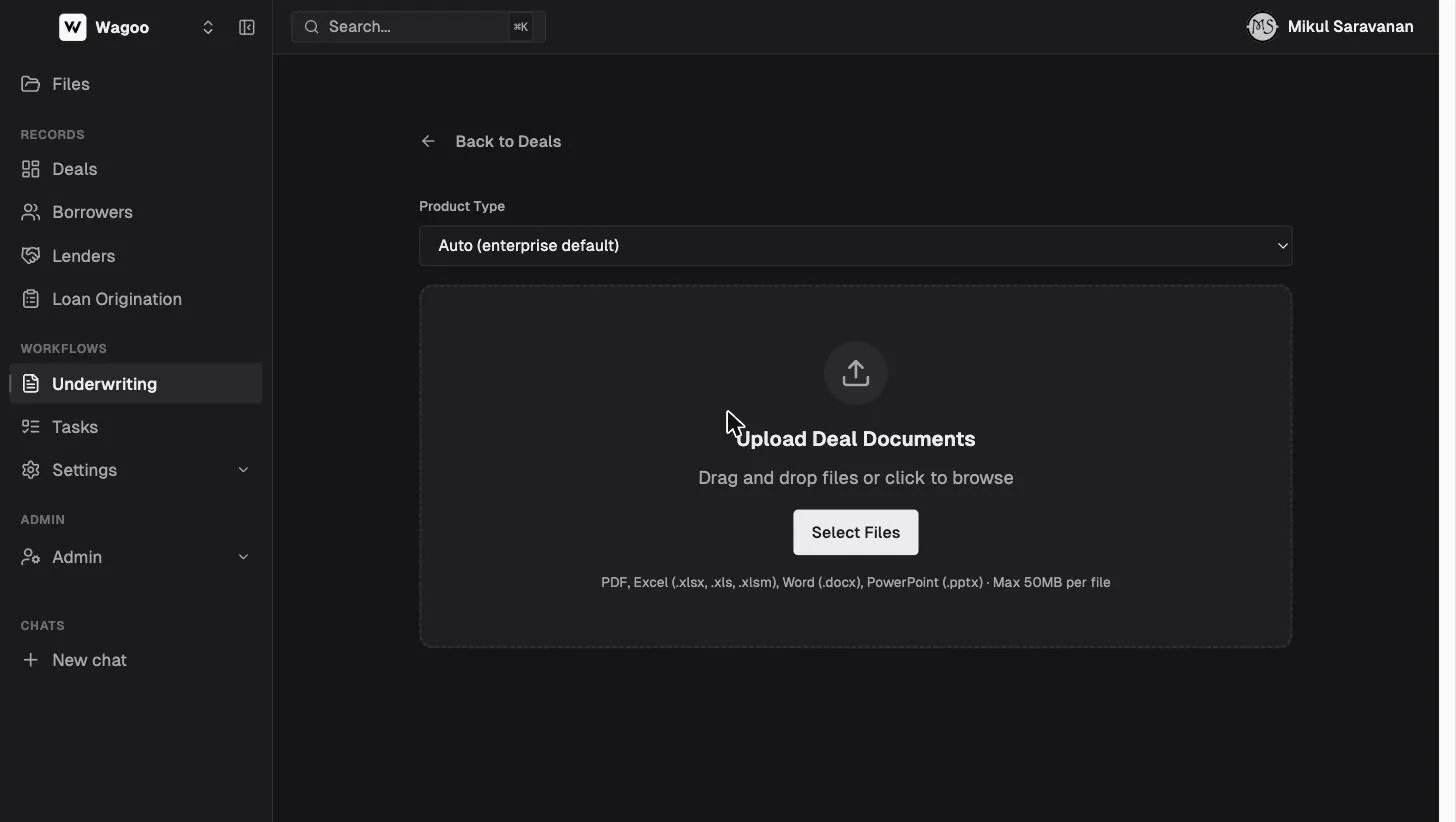
- Product Type — leave “Auto (enterprise default)”, or pick one. The customer-facing choices are Asset-Based Lending, CRE Bridge, and Equipment Finance. (This selector only appears when your workspace is enabled for multiple product types.)
- Add documents — the dropzone reads “Upload Deal Documents / Drag and drop files or click to browse”, or use “Select Files”. Supported: PDF, Excel (.xlsx, .xls, .xlsm), Word (.docx), PowerPoint (.pptx), up to 50MB per file (duplicate filenames are deduped). Typical inputs: financial statements, borrowing-base certificates, AR/AP agings, rent rolls, appraisals, equipment schedules, pitch decks.
- Click “Process N File(s)”.
More documents generally mean better extraction and higher confidence scores — the agents cross-reference sources. You can add files to a deal later and reprocess.
What happens during processing
Section titled “What happens during processing”The processing view shows a live step name, details, and a progress bar. Under the hood:
- Uploading — your files are stored against the new deal.
- Extracting Text — every document is parsed (including scanned PDFs, which go through vision transcription).
- AI Analysis — three extraction agents run in parallel: the company agent (profile, ownership, sector), the financial agent (income statement, balance sheet, spreads), and the collateral/field-exam agent (AR/AP/inventory, equipment, or property, by product type).
- Enrichment & Risk Analysis — two more agents run in parallel: web enrichment (public information about the company) and the risk agent (risk factors and mitigants).
- Building Deal Terms → Finalizing Analysis — results are cross-checked, confidence-scored per field, and assembled into the memo.
The visible step names are Uploading files → Starting Analysis → Extracting Text → Text Extraction Complete → AI Analysis → Enrichment & Risk Analysis → Building Deal Terms → Finalizing Analysis. You can Cancel while it runs, and “Back to Deals” on a failure or timeout. Long jobs keep running in the background — if the screen times out with “Still processing,” the analysis continues (polling gives up after ~60 minutes) and the deal appears in the list when done.
Reviewing the memo
Section titled “Reviewing the memo”When processing completes, the deal opens on its memo.
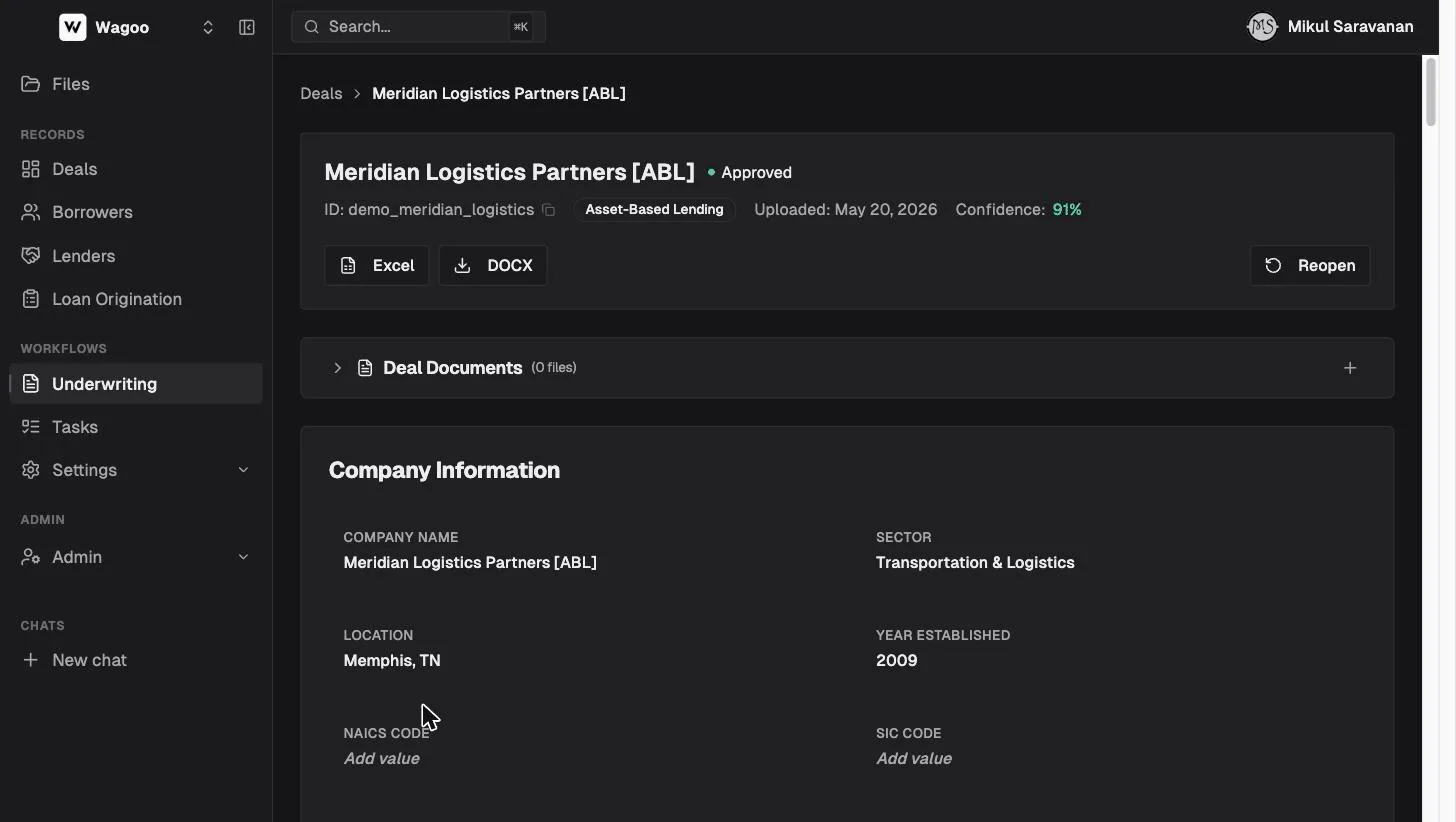
The header shows the company name, status pill, deal ID (click to copy a shareable URL), product-type badge, upload date, and the overall Confidence score, colored by strength.
Below the header, the memo is a stack of sections whose exact card titles and mix depend on the product type:
| Section (card title) | Appears for | Contents |
|---|---|---|
| Company Information | All | Name, sector, location, year established, NAICS/SIC |
| Ownership & Management | All | Owners, stakes, key people |
| Deal Terms | ABL | Facility size, advance rates, pricing |
| Collateral & Borrowing Base | ABL | AR/inventory eligibility, reserves, availability |
| Property & Valuation (+ Sources & Uses, Equity Returns, Operating Pro Forma) | CRE | Value, NOI, cap rate, comps, and the CRE financial modules that stand in for corporate financials |
| Equipment & Structure, Credit Scorecard, Financial Spread, PayNet Analysis | Equipment Finance | Asset schedule and credit scorecard |
| Leverage & Covenants | C&I Term Loan | Leverage ratios and covenant analysis |
| A/R Concentration (Top 10) & A/P Concentration (Top 10) | All (when data exists) | Top-10 customer/vendor concentrations |
| Financials | Non-CRE | Revenue, EBITDA, margins, trends |
| Balance Sheet | ABL | Assets, liabilities, working capital |
| Risk Assessment | All | Key Considerations, Strengths, Risk Factors, Mitigants, Exit Strategy |
| Industry & Positioning | All | Market context from web enrichment |
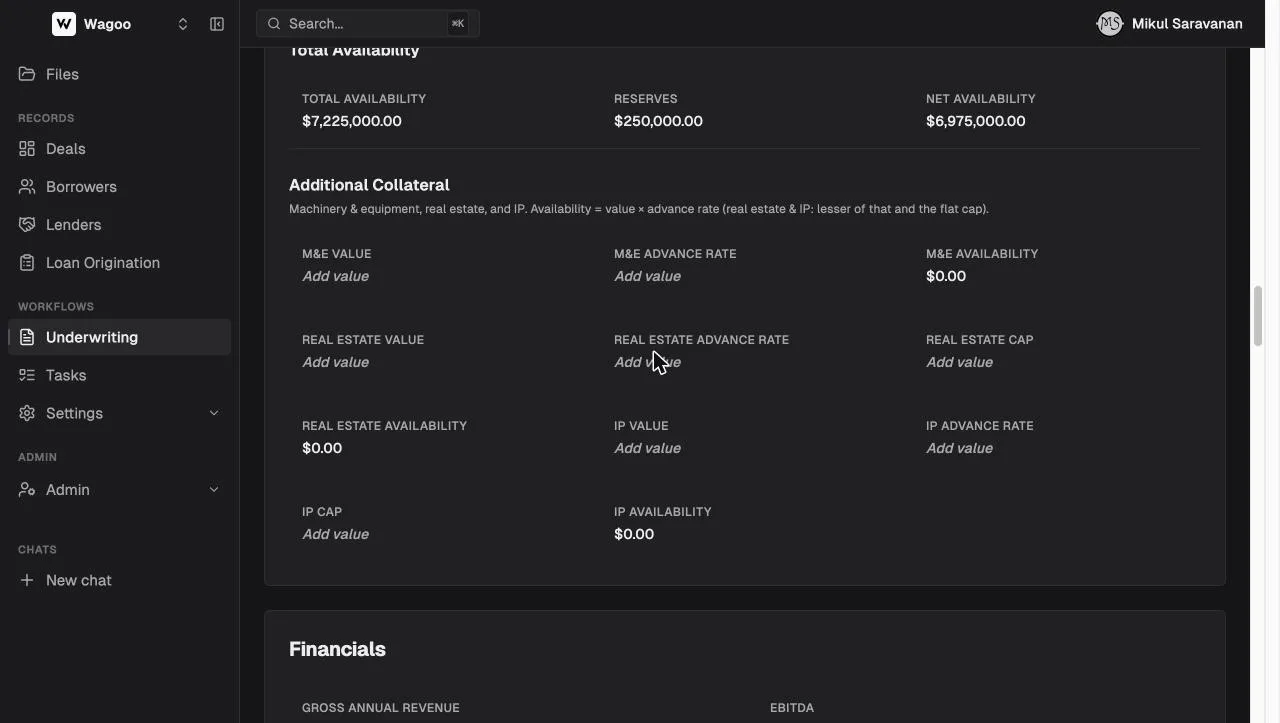
Every field is confidence-scored (0–100, color-coded) so you can see at a glance which numbers came through clean and which need a human look. Fields the documents didn’t support show “Add value” instead of a guess, and a per-card “Show more fields” expander lets you fill in catalog fields the extraction left empty.
Editing fields, provenance, and reprocessing
Section titled “Editing fields, provenance, and reprocessing”The memo is a working document, not a printout:
- Edit fields inline — corrections save to the deal and the memo re-derives immediately, no reload. (On deals backed by extraction claims, editability is per-field; derived/computed fields aren’t directly editable.)
- Revert — a field you’ve overridden shows a “Revert to extracted value” control (toast “Reverted to extracted value”).
- Provenance — the ⓘ next to a value shows its source line, validation, and origin document (with cell/page), or “No source document on file yet.”
- Concurrent edits — if someone else changed the deal, a banner appears: “This deal changed since you loaded it. Refresh to get the latest values.”
- Deal Documents — a collapsible card (default collapsed) listing every uploaded file with in-app preview and download, plus an add-files button.
- Reprocess — re-runs the full analysis over every attached document. It’s available from the Deal Documents card only when the deal’s status is Review or Failed, and confirms first: “All current analysis will be replaced. The pipeline will re-run on every document currently attached to this deal… Manual edits to extracted fields will be overwritten.” Reprocess after adding significant new documents; edit inline for small corrections.
Exporting the memo
Section titled “Exporting the memo”Export buttons sit at the top of every completed deal:
| Export | Format | Available |
|---|---|---|
| DOCX | Full written credit memo | All product types |
| Excel | Structured workbook of the extracted data | All product types |
| Presentation | PDF deck | CRE deals |
| 4-Pager | Condensed DOCX summary | CRE deals |
Exports are disabled while a deal is processing or failed.
Statuses and decisions
Section titled “Statuses and decisions”Use the status buttons in the header to record the credit decision:
| Status | Meaning |
|---|---|
| Draft | Created, analysis not final |
| Processing | AI analysis running |
| Review | Analysis complete, awaiting decision |
| Approved | Accepted |
| Rejected | Declined |
| Failed | Analysis errored (see the validation message; fix inputs and reprocess) |
Approved and Rejected deals show a “Reopen” button to bring them back into Review. Draft and Review are disabled while a deal is processing; Approve and Reject are disabled while processing or failed.
How underwriting connects to origination and the CRM
Section titled “How underwriting connects to origination and the CRM”- From origination: promote an application with “Send to Underwriting” — Wagoo creates the underwriting deal, starts analysis immediately, and freezes the application as an audit snapshot that links to the deal.
- From the assistant: the AI Assistant can look up and read your underwriting deals in chat (“what did the analysis say about Acme’s concentration risk?”).
- Direct upload works too — underwriting doesn’t require origination or the CRM.
Frequently asked questions
Section titled “Frequently asked questions”How long does analysis take? Usually about a minute; large document sets take longer. Analysis continues in the background even if you navigate away or the progress screen times out.
What documents should I upload? Whatever you’d hand a human analyst: financial statements, agings, borrowing-base certificates, rent rolls, appraisals, tax returns, equipment schedules. PDF, Excel, Word, and PowerPoint are supported, 50MB per file. Scanned documents are fine — they’re transcribed automatically.
What does the confidence score mean? It’s the system’s own estimate of extraction reliability, per field and overall. High-confidence fields were corroborated by the documents; low-confidence fields deserve a manual check. Editing a field yourself makes it authoritative.
Will reprocessing lose my edits? Yes — reprocess replaces the entire analysis, including manual field edits (the confirmation dialog warns you). Export first, or prefer inline edits when the change is small.
Can I re-run just one section? No — reprocessing is whole-deal. Inline edits are the way to adjust individual fields.
Who can see underwriting deals? Everyone in your workspace with the underwriting feature. Deals are isolated per workspace.
Related: Loan Origination · AI Assistant · Reference: statuses