Loan Origination: applications, the borrower portal, and promotion
Loan Origination (sidebar → Records → Loan Origination) is where loans live before funding. Borrowers apply through a link you share, upload their documents into a personal portal, and their application moves across your pipeline board. When it’s ready, one click promotes it into a CRM deal for servicing or sends it to AI underwriting for analysis — and the application freezes into a permanent audit snapshot.
How origination fits the lending workflow
Section titled “How origination fits the lending workflow”| Tool | Use it when |
|---|---|
| Intake form | You just need a borrower’s contact details — one-time link, creates a borrower record |
| Loan Origination (this page) | You need a full application: applicant info + document collection + pipeline review |
| Loan CRM deal | The loan is (about to be) funded and needs servicing |
| AI Underwriting | You want an automated credit analysis of the application |
Origination sits in the middle: it produces CRM deals and underwriting deals via promotion.
The pipeline board
Section titled “The pipeline board”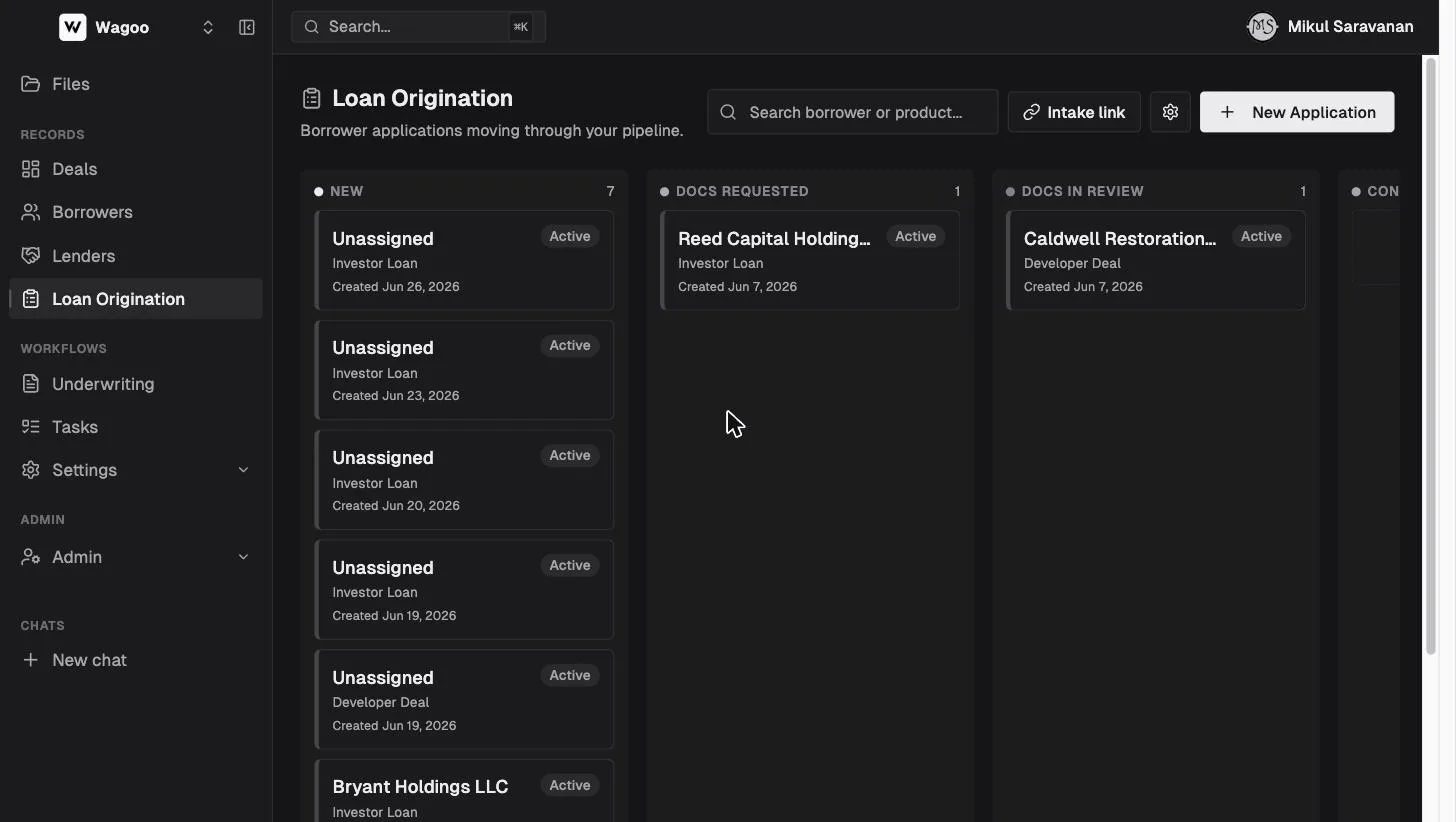
Each column is a stage. The defaults are New → Docs Requested → Docs In Review → Conditions → Approved; admins can rename or add stages in settings. Column headers show a count; each card shows the applicant or borrower name, product type, status pill, and creation date.
- Move an application by opening it and changing its Stage dropdown on the detail page. (There’s no drag-and-drop on the board — cards are links that open the application.)
- Search by borrower or product with the search box (“Search borrower or product…”).
- Cards with no attached borrower show the applicant’s typed name from their form, falling back to “Unassigned”.
- Applications in a terminal status (Promoted, Withdrawn, Archived) collapse into a “Closed (n)” section under the board so the columns stay focused on live work.
Application statuses: Active (applicant still working) · Submitted (sent in for review) · In Review · Promoted (converted — read-only) · Withdrawn · Archived. Status is set on the application detail page; Promoted is set by the system when you promote, never by hand.
Stage vs. status: stage is where the application is in your process (the board column); status is what state it’s in (active, submitted, closed). They move independently.
Getting applications in: links and manual creation
Section titled “Getting applications in: links and manual creation”The intake link (most common)
Section titled “The intake link (most common)”Click “Intake link” on the board header and pick a product type. Wagoo copies a permanent shareable URL (/apply/<token>) for that product. Put it in an email signature, on your website, or send it directly — anyone with the link can apply, and every person who clicks Start gets their own fresh application.
Admins can rotate a link in settings if it leaks — the old URL stops working immediately.
New Application (manual)
Section titled “New Application (manual)”Click “New Application” to start one yourself — useful when an application arrives by phone or email.
- Product type — which product’s documents and fields to use.
- Borrower (optional) — attach an existing CRM borrower now, or leave unassigned and attach later. (A borrower is required before promoting to a CRM deal.)
On create, Wagoo opens the application and you can copy the applicant’s personal portal link to send them.
What the applicant sees
Section titled “What the applicant sees”1. The apply page (/apply/…)
Section titled “1. The apply page (/apply/…)”The permanent product link opens a public start page — no login, no account creation.
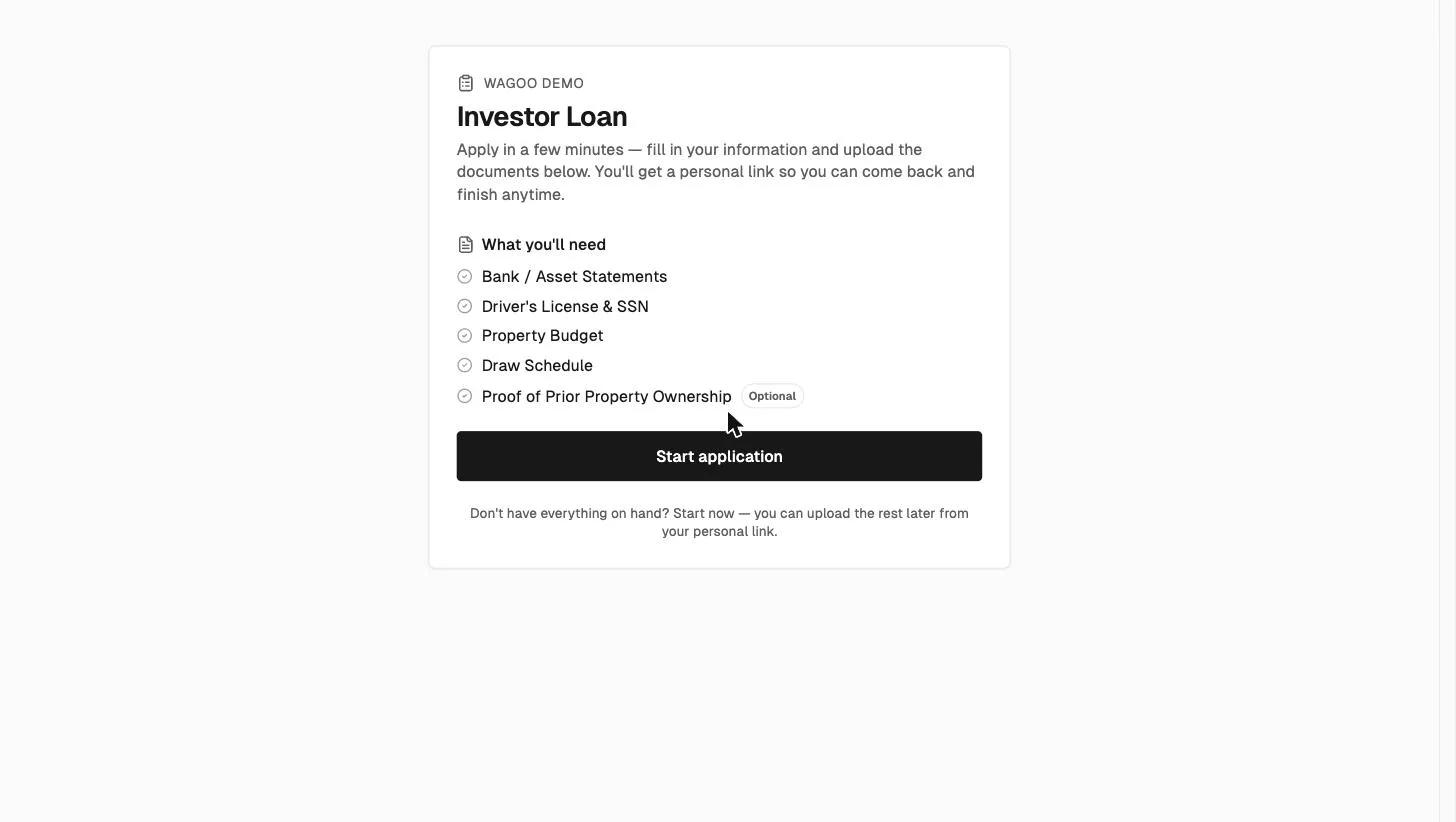
It shows your firm’s name, the product (e.g. “Investor Loan”), and a “What you’ll need” checklist of every document you require (optional ones are tagged Optional). The footer reassures them: “Don’t have everything on hand? Start now — you can upload the rest later from your personal link.” Clicking “Start application” creates their application and lands them in their personal portal.
2. The personal portal (/loan-application/…)
Section titled “2. The personal portal (/loan-application/…)”Each application gets a unique, private portal URL the applicant can return to anytime — field answers save automatically as they move off each field (a brief “Saving…” indicator appears), and uploads stick immediately.
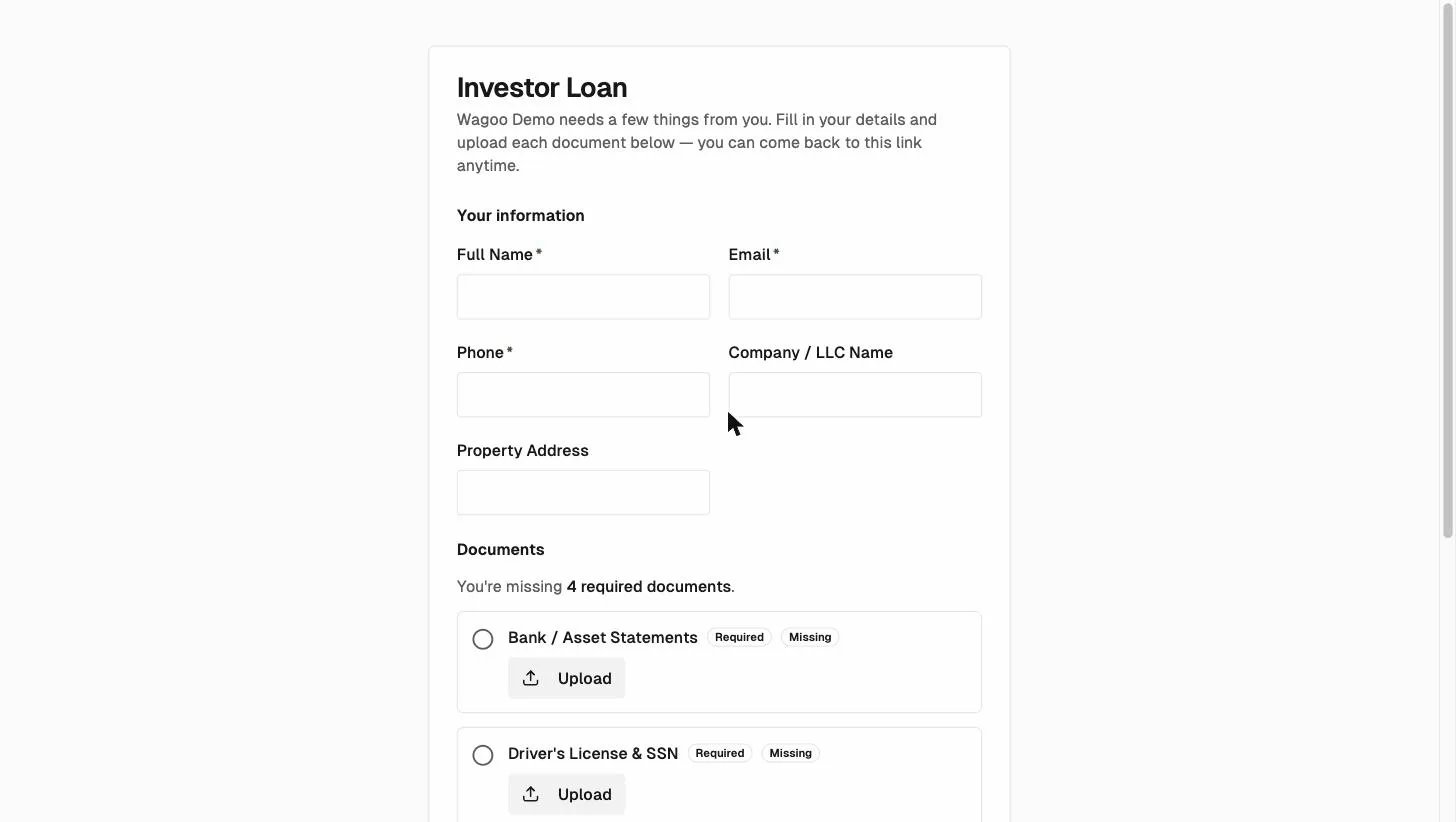
- “Your information” — the applicant fields you configured (name, email, phone, company, property address, or custom fields). Required fields are starred.
- “Documents” — one slot per document bucket, each with a Required/Optional badge, a status badge, and an Upload (or Replace) button. A counter tells them exactly how many required documents are still missing.
- “Submit application” — enabled only when every required field is filled and every required document is satisfied (uploaded, verified, or waived). After submitting they see a read-only confirmation of what they sent.
If they lose the link, open their application and click “Copy borrower link” to re-send it.
Reviewing an application
Section titled “Reviewing an application”Click any card to open the lender-side view.
The header
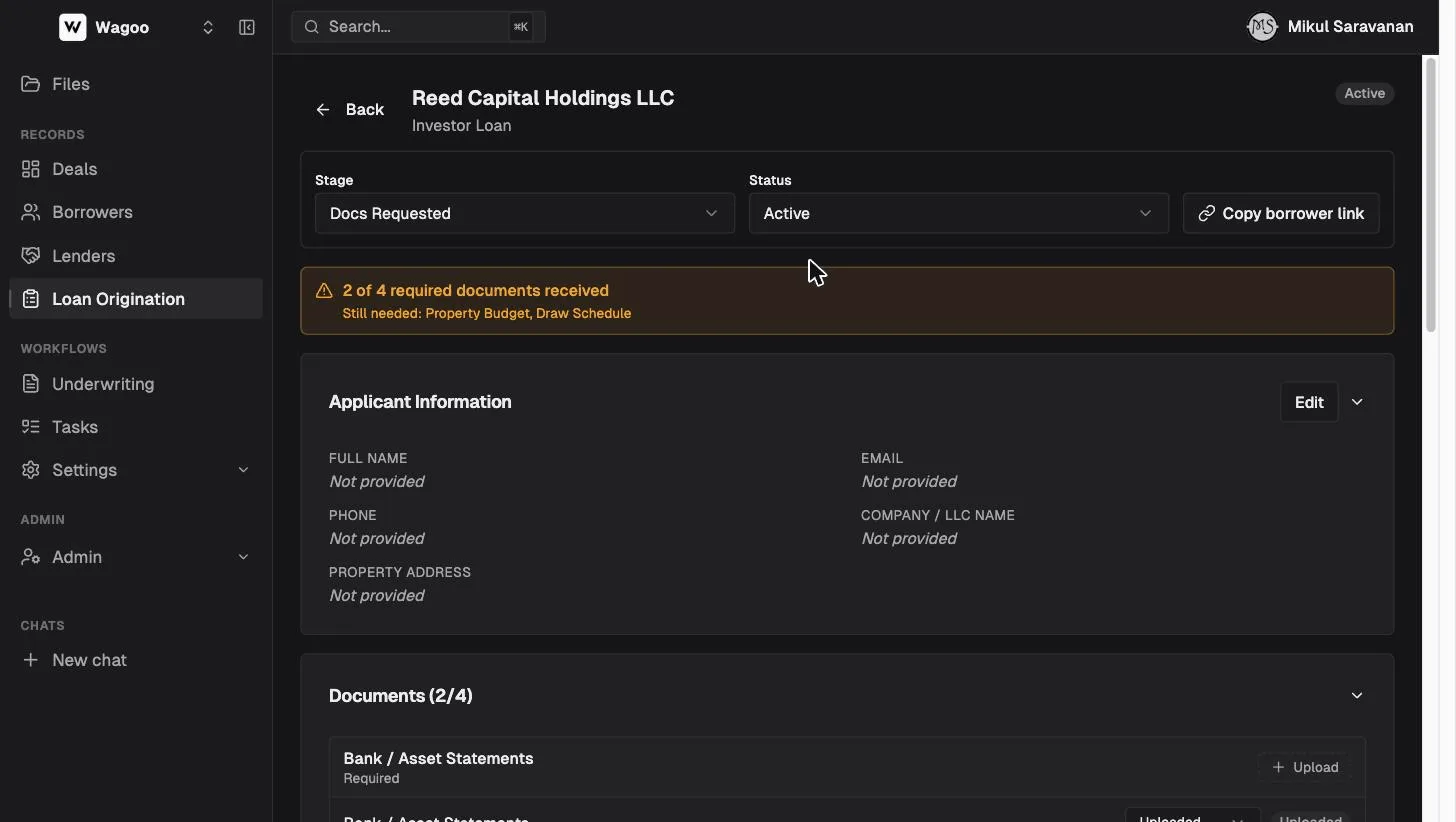
Section titled “The header”- Stage dropdown and Status dropdown.
- “Copy borrower link” — the applicant’s portal URL, for re-sending.
- The readiness banner — the fastest signal on the page. Green: “All required documents received — ready to promote.” Amber: “2 of 4 required documents received — Still needed: Property Budget, Draw Schedule.”
Applicant Information
Section titled “Applicant Information”The submitted answers, driven by your product’s field configuration. Click “Edit” to correct or complete them on the applicant’s behalf.
Documents, order-outs, and ownership verification
Section titled “Documents, order-outs, and ownership verification”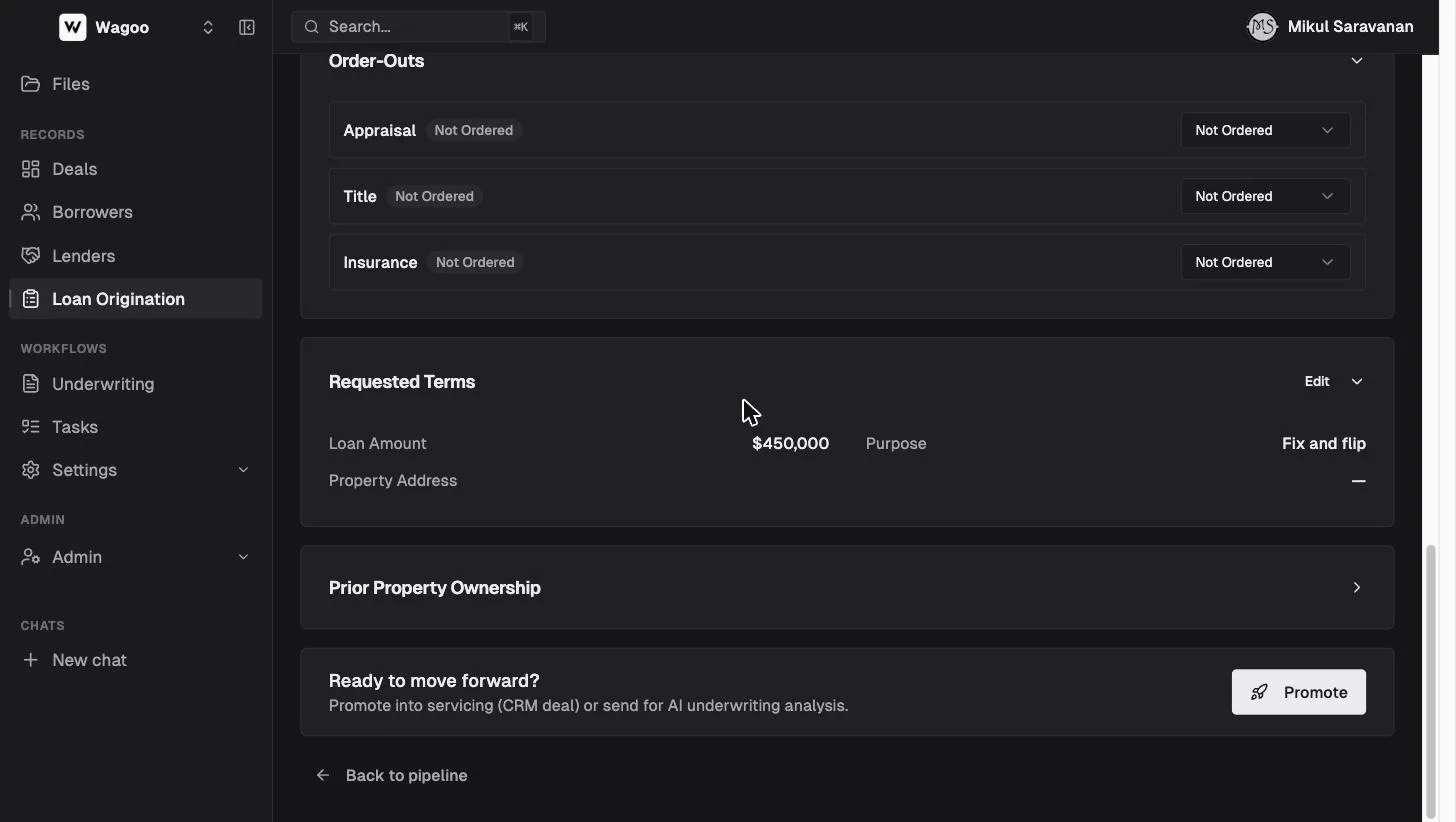
Documents
Section titled “Documents”Each configured bucket (e.g. Bank / Asset Statements, Driver’s License & SSN, Property Budget, Draw Schedule) lists its uploads. Per document you can:
- Set a status: Missing / Uploaded / Invalid / Verified / Waived. Uploaded, Verified, and Waived all count toward the readiness banner — waive a requirement when you’ve satisfied it another way.
- Open or download the file (links are secure and short-lived).
- Upload on the applicant’s behalf into any bucket.
Order-Outs
Section titled “Order-Outs”Track the third-party items you order during diligence — Appraisal, Title, Insurance — each with a status you can set in any direction: Not Ordered / Ordered / Verified. Ordering and verification dates are stamped automatically. Empty state: “No order-outs configured.”
Requested Terms
Section titled “Requested Terms”The economics requested: Loan Amount, Purpose (e.g. “Fix and flip”), Property Address. Click “Edit” to set or adjust them — these carry into the deal on promotion.
Prior Property Ownership
Section titled “Prior Property Ownership”For experience verification, record each property the applicant claims to have owned: address and claimed owner. A property you add starts as Needs Review, and you resolve it to Verified or Mismatch (the “Pending” state is reserved for future automated checks and isn’t settable by hand). Inline hint: “Automated ownership verification (DataTree) is planned — for now, verify manually.”
Promoting an application (permanent)
Section titled “Promoting an application (permanent)”When the application is ready, click “Promote” in the “Ready to move forward?” card.
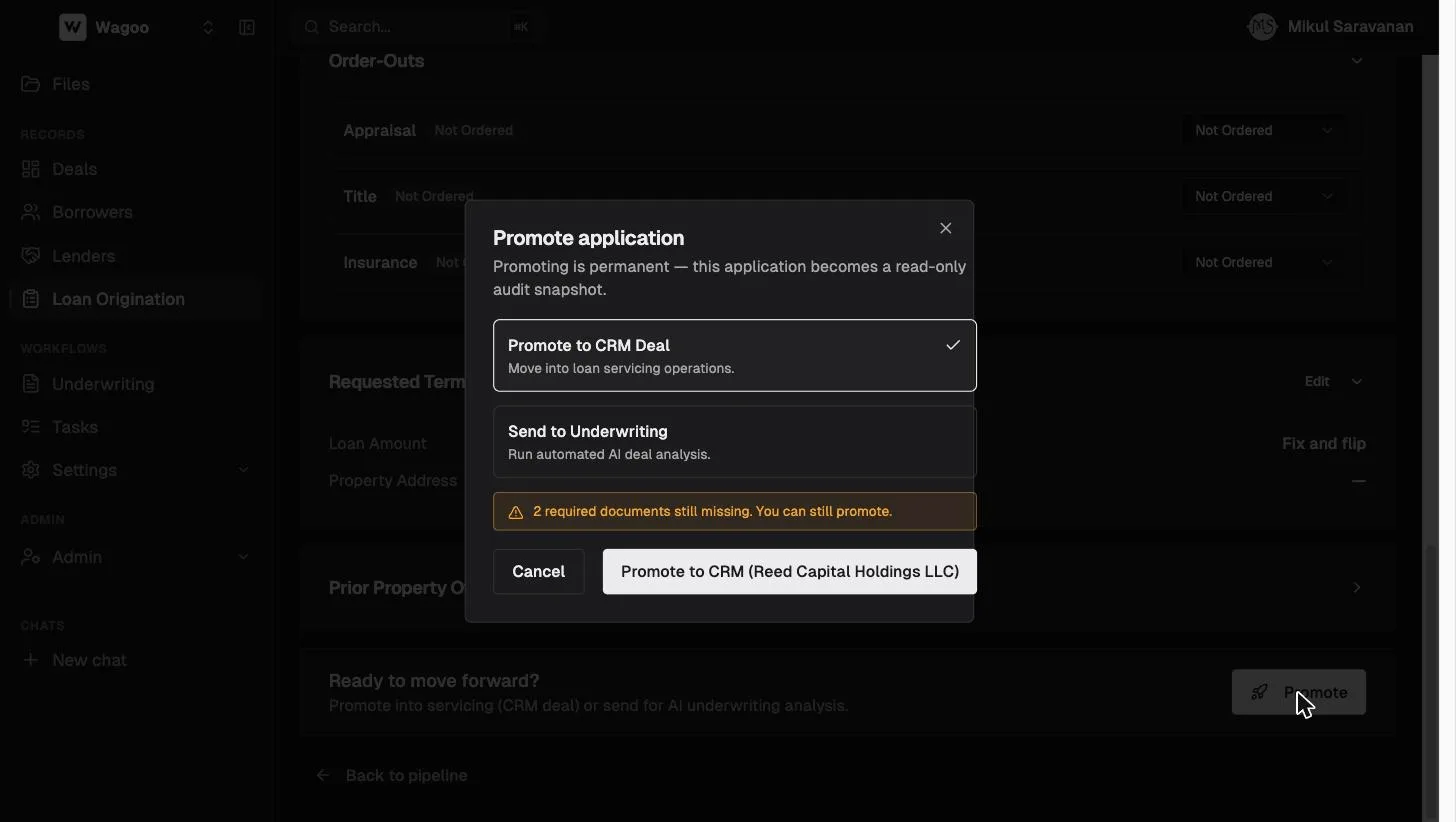
The targets you see depend on your workspace’s features — Promote to CRM Deal needs the crm feature, Send to Underwriting needs underwriting, and the whole “Ready to move forward?” card is hidden if you have neither.
| Target | What happens | Requirement |
|---|---|---|
| Promote to CRM Deal | Creates a servicing deal in the Loan CRM carrying the borrower, property, and requested terms; opens it (confirm button “Promote to CRM ({borrower})“) | A borrower must be attached — otherwise the option is disabled with “Assign a borrower first” |
| Send to Underwriting | Creates an AI Underwriting deal and starts analysis immediately | Pick the underwriting product type (Asset-Based Lending, CRE Bridge, Equipment Finance, C&I Term, Residential); Wagoo preselects one from the origination product |
You can promote with required documents still missing — but the warning (“N required document(s) still missing. You can still promote.”) only appears for the CRM Deal target; the underwriting path shows no such warning. Success toasts are “Promoted to CRM deal” and “Sent to underwriting.”
Configuring origination (admins)
Section titled “Configuring origination (admins)”Admins open settings with the gear icon on the pipeline board (or /loan-origination/settings). Non-admins see the pipeline but not this screen. Everything here defines what new applications collect.
Pipeline stages
Section titled “Pipeline stages”The board columns, left to right. Add, rename, or remove stages. Applications sitting in a removed stage show under an “Other” column rather than disappearing.
Product types
Section titled “Product types”Each product (e.g. Investor Loan, Developer Deal) has its own:
- Shareable link — create, Copy, or Rotate it. Rotating invalidates the old URL immediately.
- Documents — the buckets applicants see, each with a Required switch. Required documents gate submission and drive the readiness banner.
- Applicant fields — the form inputs on the public page. Field types: Text, Long text, Number, Date, Email, Phone, each with a Required switch.
Out of the box, “Investor Loan” asks for Bank / Asset Statements, Driver’s License & SSN, Property Budget, Draw Schedule (all required), plus an optional Proof of Prior Property Ownership; “Developer Deal” adds Plans, Specs & Permits, Corporate Docs, Personal Guarantor Docs, and a Light Application (all required). Change these to match your checklist.
You edit one product at a time from a dropdown picker (with ”+ Add product type”); the last product can’t be removed, and rows left with a blank label are dropped on save. The link row shows the URL (or “No shareable link yet”) with Create link → Copy, and Rotate once a link exists.
Click “Save changes” — the configuration must keep at least one product and one stage (toasts: “Origination settings saved”, or “At least one product type is required”). Field/document/stage keys are slugified from the label once and then fixed, so renaming later keeps existing answers attached. Existing applications keep the shape they were created with; new ones use the updated config.
Frequently asked questions
Section titled “Frequently asked questions”Do applicants need an account or password? No. The apply link is public, and each application gets a private portal URL that acts as the applicant’s key. Anyone with that personal link can edit the application — treat it like a password and re-send it only to the applicant.
Can an applicant save and come back later? Yes. Field answers save when they move off each field, and uploads stick immediately. The portal is fully resumable from the same link. (An application that requests nothing — no required fields and no required documents — can’t be submitted.)
Can I fill in or upload on the applicant’s behalf? Yes — everything on the application detail page is editable by your team (until promotion): applicant info, documents, terms, and statuses.
What if a required document doesn’t apply to this deal? Set its status to Waived. Waived counts as satisfied for the readiness banner and the submit gate.
Can I undo a promotion? No. Promotion freezes the application permanently as an audit record. The deal it created is fully editable — but the application itself is a snapshot. If you promoted to the wrong target, create the right record manually and archive the wrong one.
Can one borrower have multiple applications? Yes — every click of “Start application” on a shared link creates a fresh application, and you can create any number manually.
Related: Loan CRM deals · AI Underwriting · Intake forms · Reference: statuses