Files & Tasks: the shared library and the team to-do list
Two workspace-wide tools that sit above individual deals: Files (one document library for your whole team) and Tasks (one to-do list, ordered by due date). Both are available in every workspace.
Files (sidebar → Files, at the top) is the team’s shared library, across all deals.
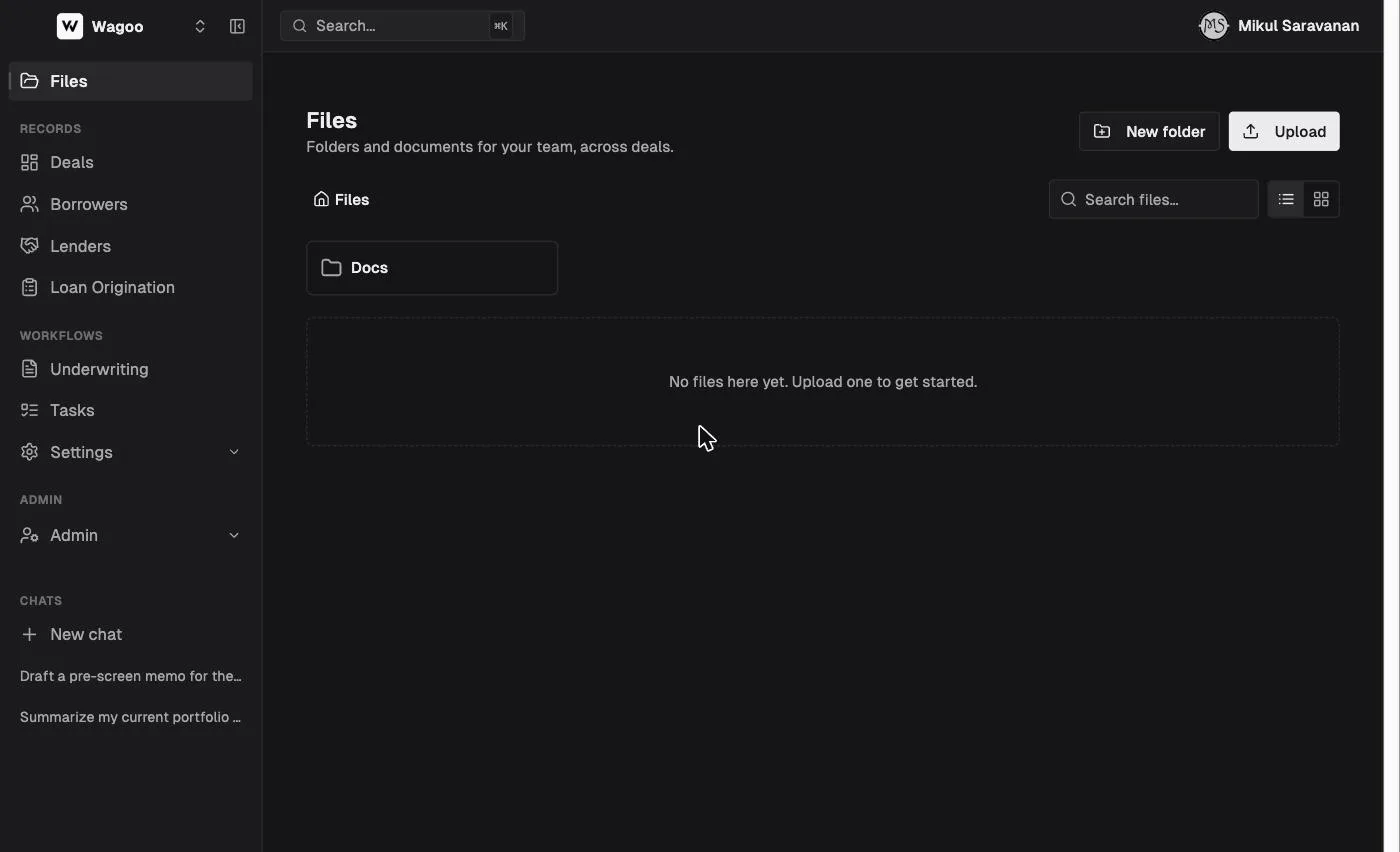
- Upload adds one or more files into the current folder (sequential; no drag-and-drop; toast “Uploaded N file(s)”). New folder creates a folder (“At the top level.” or “Inside ‘X’.”).
- Folders are organizational only and can be renamed or deleted — they can’t be moved or re-parented, and nesting is fixed at creation. Only files can be moved.
- The list columns are Name, Linked to, Size, Uploaded, By (the uploader’s email, or ”—”). A list/grid toggle changes the layout; folders show as a card grid.
- The row menu on a file offers Open (via a 60-second signed URL — no inline preview), Rename, Move (dialog “Move file”, tree rooted at “Files (top level)”), Link to record, and Delete.
Link to record (“Link to a record”, search “Search deals & borrowers…”, with a “Clear links” option) attaches a file to one deal and/or one borrower. Deleting a file is permanent (“This permanently removes the file from storage.”); deleting a folder keeps its files (“Any subfolders are removed too. Files inside move back to the top level — they are not deleted.”).
Tasks (sidebar → Workflows → Tasks) is one list for the team: “General to-dos and deal tasks across your team, ordered by due date. {N} open.”
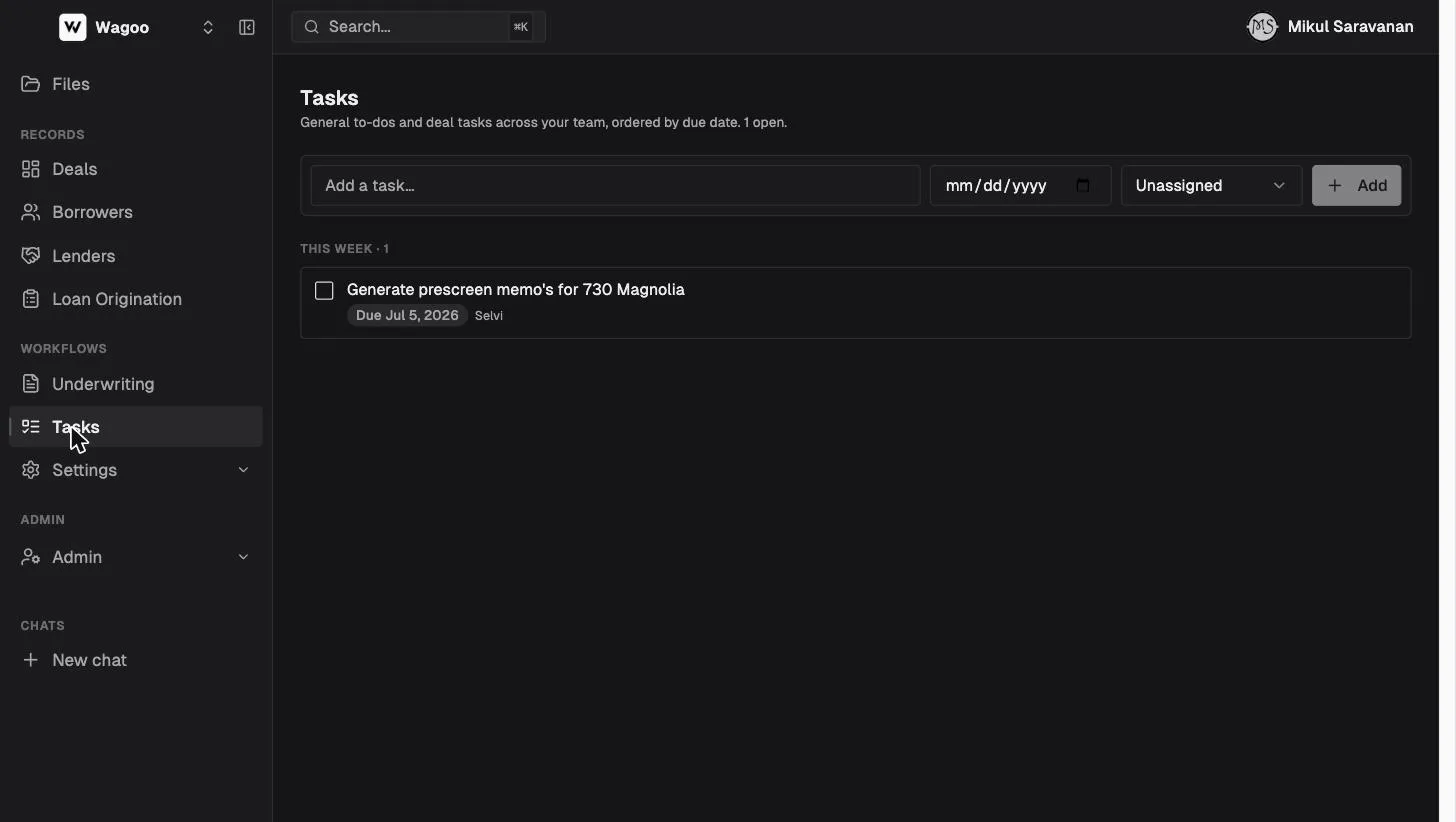
- Add a task inline: type into “Add a task…”, optionally pick a due date and an Assignee (any member, or “Unassigned”), then Add (or Enter). Add is disabled until the title is non-empty. Assigning a task emails the assignee, and open tasks send a reminder email the day before they’re due.
- Tasks group into due-date buckets, each with a count: Overdue (red) · Today · This week (next 7 days) · Later · No due date. Empty buckets are hidden.
- Each row has a completion checkbox, the title, a due pill (red/amber/neutral), a deal chip for deal-scoped tasks (links to the deal; “Deleted deal” if gone), the assignee (“Former member” if they’ve left), and a hover delete (no confirmation). You can complete/uncomplete and delete tasks, but not edit an existing one’s text.
- A “Completed · N” section (collapsed by default; N is the total) lists the 25 most recent, with “Showing the 25 most recently completed.” Empty state: “No tasks yet — add one above, or from a deal’s Tasks panel.”
Every deal also has a Tasks panel in its right rail; tasks created there are deal-scoped and appear here too (with the deal chip). Tasks added on this page without a deal are general team to-dos.
Frequently asked questions
Section titled “Frequently asked questions”Who can see the Files library? Everyone in your workspace — it’s a team library, isolated per workspace.
Why can’t I find a file I know I uploaded? Search only looks inside the current folder. Navigate to the folder it’s in, or browse from the top level.
If I link a file to a deal, will it show on the deal? It shows in the library’s “Linked to” column and the assistant can read it, but it does not appear in the deal’s Documents section. Upload to the deal’s Documents for that.
Do task assignments email the assignee? Yes — the assignee receives an email when a task is assigned to them, and a reminder email the day before an open task is due. (Reassigning a task re-points future emails at the new assignee.)
Can I recover a deleted file? No — file deletion is permanent. Folder deletion is safe: contents move to the top level.
Related: Deals → Documents · AI Assistant